留言
留言
如果您对我们的产品感兴趣并想了解更多详情,请在此留言,我们会尽快回复您。

提交

人机交互

人机交互

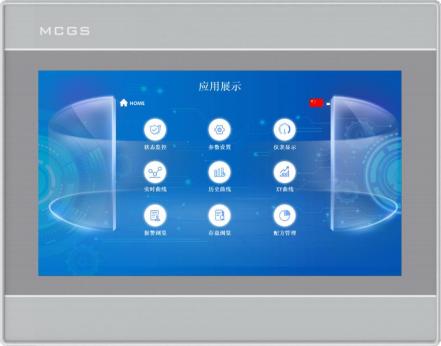
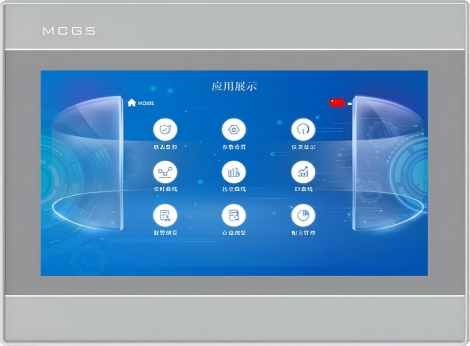
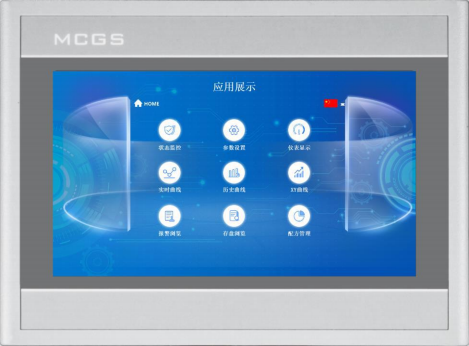
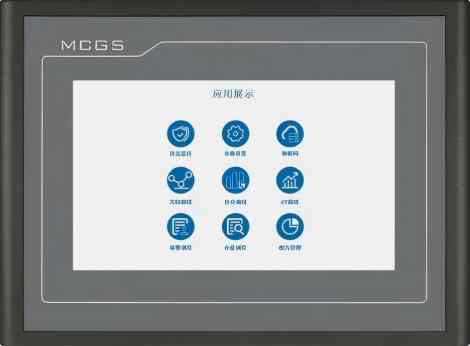
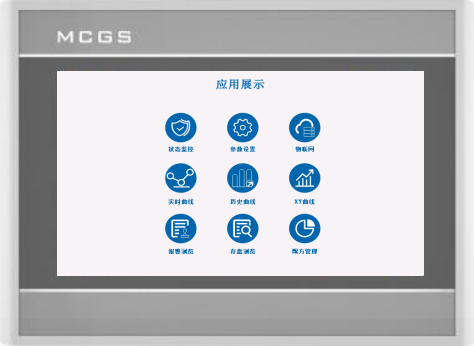
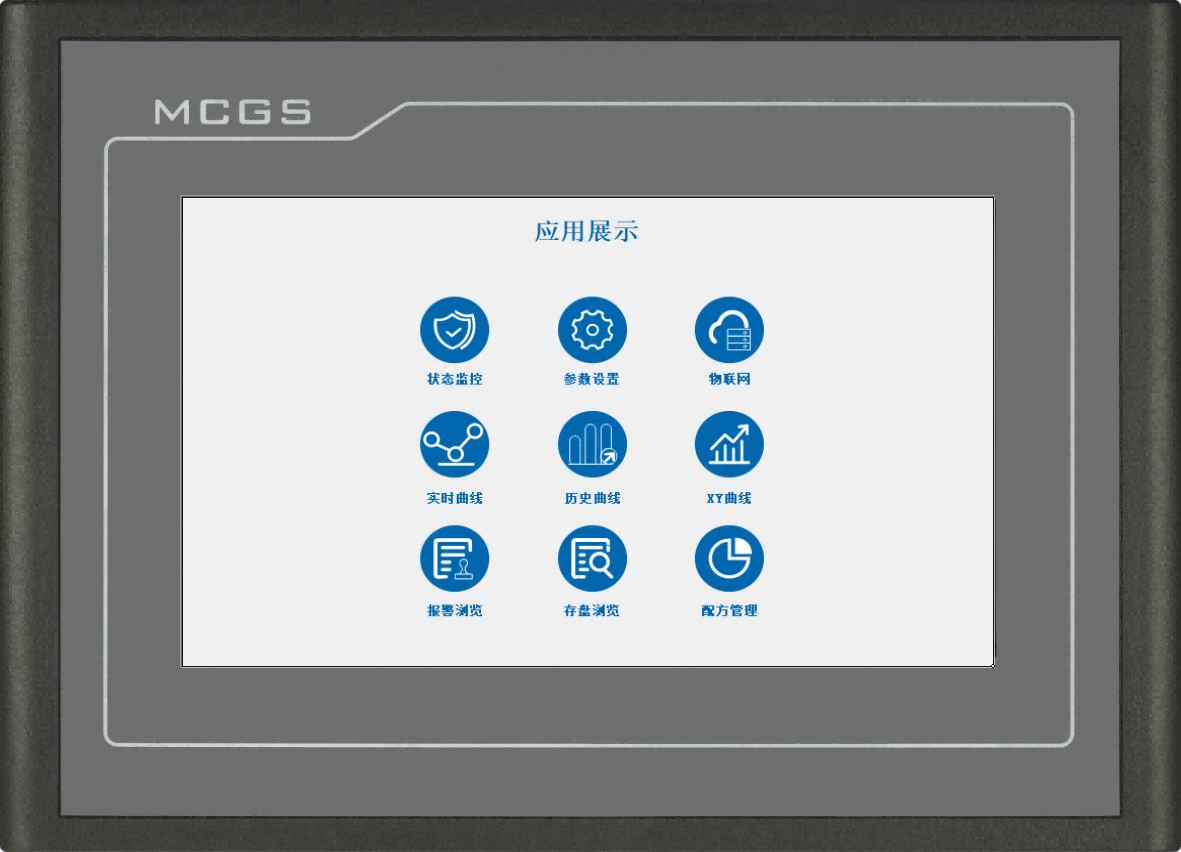
HMI E 系列 TPC7012Ew

Intelligent HMI TPC7012Ew

HMI E 系列 TPC7012Ew

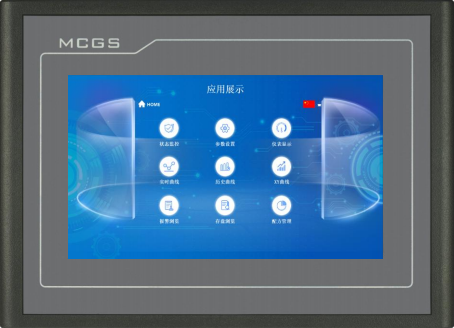
昆仑科技推出的E系列TPC是一款中低端智能触控屏,能够满足用户的各种应用需求。

  • 商品编号 :

    TPC7012Ew
  • 订单(最小起订量) :

    50
  • 支付 :

    Paypal\TT\Western Union
  • 产品来源 :

    Guangdong, China
  • 重量 :

    1KG

E Series stands as a beacon of value, offering unparalleled cost-effectiveness, intuitive user-friendliness, and unwavering budget-friendliness, all wrapped in an embarrassment of riches when it comes to product selections. Each model boasts either 64MB or 128MB of responsive memory, paired with a generous 8MB of internal storage, creating a robust foundation that effortlessly supports a kaleidoscope of resolutions—from crisp standard definitions to vibrant widescreens—and adapts seamlessly to a myriad of display settings, ensuring every visual experience is tailored to your preferences. Whether you're seeking a reliable companion for everyday tasks or a versatile tool for creative exploration, the E Series delivers without compromise, inviting users into a world where quality meets accessibility.


Product Specifications

Classification

Item

TPC7012Ew

Product Features


Liquid Crystal Screen

7" TFT

Backlight Type

LED

Display Color

65536

Pixel Resolution

800×480

Display Brightness

250cd/㎡

Touch Screen

Four-wire Resistor

Input Voltage

24±20%VDC

Rated Power

5W

Processor

ARM 600MHz

Memory

64MB

System Storage

128MB

User Storage

8MB

Hardware Clock

Built-in

Configuration Software

McgsPro 3.5.1

External Interface


Serial Interface

Way 1: COM1 (RS232), COM2 (RS485)

Serial Interface

Way 2: COM2 (RS485), COM3 (RS485)

Serial Interface

Way 3: COM9 (RS422)

USB Interface

1×Host/Slave

Environmental Conditions


Operating Temperature

0℃~45℃

Operating Humidity

5%~90% (non-condensing)

Storage Temperature

-10℃~60℃

Storage Humidity

5%~90% (non-condensing)

Product Specifications


Casing Material

Engineering Plastics

Casing Color

Silver

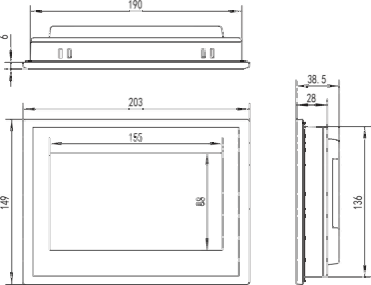
External Dimensions

203mm×149mm

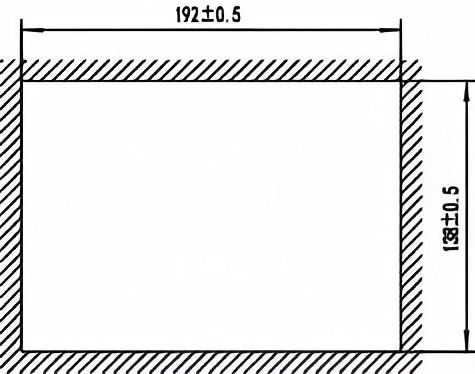
Rack Opening

192mm×138mm

Display Size

155mm×88mm

Compliance Certification


Product Certification

Conform to CE/FCC Certification Standards

Protection Level

IP65 (Front Panel)

Electromagnetic Compatibility

Industrial Level 3


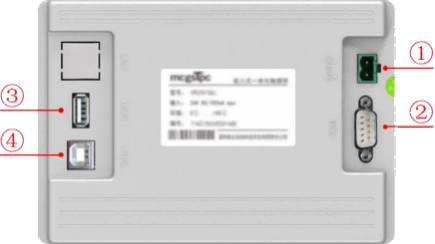
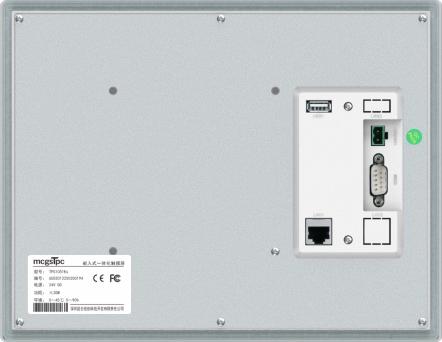
Interface Description


Electricity  source


-

1

0V

+

2

DC24V


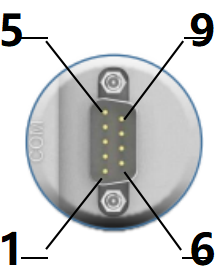
Serial port


COM1

2

RS232 RXD

3

RS232 TXD

5

GND

COM2

7

RS485+

8

RS485-

COM3

4

RS485+

9

RS485-


COM9

7

RXD+

8

RXD-

4

TXD+

9

TXD-

Note: Method 1: COM1, COM2; Method 2: COM2, COM3; Method 3: COM9

USB1 main port 

USB 2.0 supports updating the touchscreen's operating environment, projects, and system via USB flash drive, as well as data import and export functions. It is mutually exclusive with the secondary port.

USB2 main port

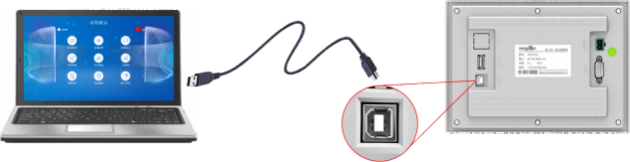
USB male port (Type B ), can upload or download projects, mutually exclusive with the main port.


Product Installation

l Product Dimensions


External dimensions 


Opening size

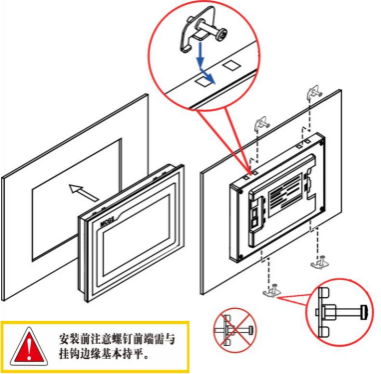
l Installation method


Note before installation: The front end of the screws must be basically flush with the hanger edge.

Hook installation 


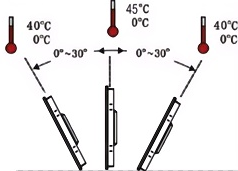
Installation angle


1.5  Product Maintenance

Battery location: TPC On the circuit board inside the product

Battery specifications: CR2032 3V lithium batteries

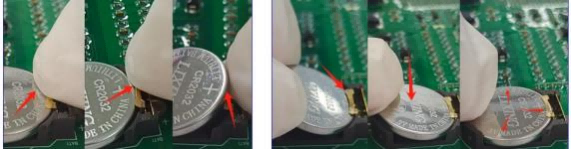
To remove the battery: Remove the adhesive on top of the battery, gently move the positive terminal to the battery position, and the battery will pop out automatically.

Install the battery: First, place the battery into the positive terminal clip, and then gently press the other end under the plastic clip. Check that both plastic clips and the metal positive terminal clip are properly inserted.

When installing, please be careful to avoid short-circuiting the positive and negative terminals of the battery.

1.5.1  Replacement battery


                                                                           Remove battery                                                                  Install battery


1.5.2  Touch calibration

Enter TPC In the system settings interface, press and hold on a blank area. 3 The touch calibration process will begin in seconds.

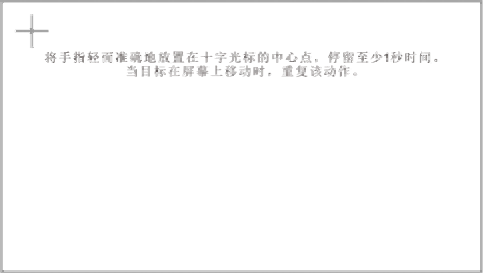
TPC Calibration: Use a stylus or finger to lightly press and hold the center point of the crosshair cursor. When the cursor moves to the next point, lift it.

Repeat this action until the message "New calibration settings have been measured" appears.

Click the "Confirm Calibration" button to save and exit the calibration program.

Place your finger lightly and accurately on the center of the crosshair cursor and hold it for at least one second as the target moves across the screen. Repeat this action.

1.5.3  Three-proof film

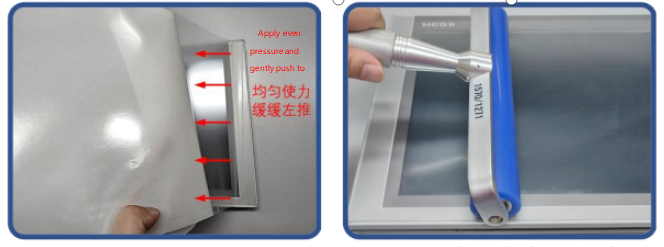
Give TPC Applying a protective film can effectively prevent dust , oil, and other contaminants generated during production from affecting the skin. TPC is susceptible to corrosion, therefore, if necessary, a protective membrane can be used to protect TPC. To protect it. This article takes... 1271Gn We will use this as an example for explanation; other models will be discussed later. TPC The steps for applying the screen protector are similar .

l Tools needed: TPC Includes a three-proof film (available for purchase from screen suppliers), dustproof cloth, anti-static environmentally friendly cleaning agent, and roller.

l Operating steps:

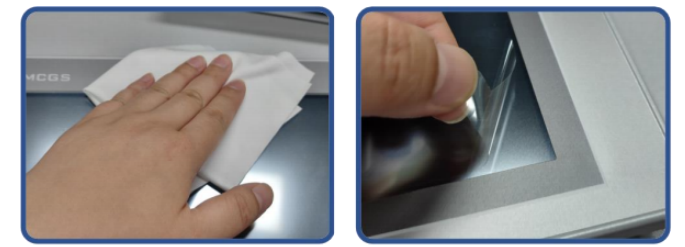
1) Clean the screen. Use a dust cloth to wipe away dirt from the front panel to prevent bubbles when applying the screen protector. If the TPC surface is heavily contaminated, use a cleaning agent to help clean contaminants in the crevices around the edges.

2) Remove the factory-installed PET protective film and clean any residue to prevent bubbles from forming during application.

3) Peel off a corner of the backing film on the right side. Align the right side of the film with the right side of the TPC. With your left hand, slowly peel off the backing film, and with your right hand, apply even pressure to gently push the film onto the screen from right to left

4) After applying the film, use a roller to press the adhesive backing firmly to prevent air bubbles.

l Precautions:

1) The factory-installed protective film must be removed before applying the three-proof film. PET Protective film

2) The three-proof film is a consumable. If the edges are found to be peeling or bulging , a new film needs to be applied.

3) When replacing the protective film, pry it up from the lower right corner of the front panel, being careful not to scratch the sealing film.

2 Project Download

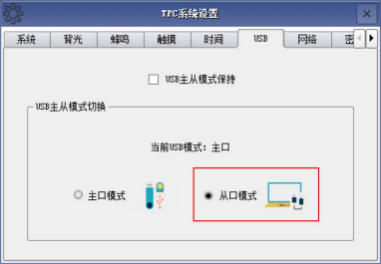
Step 1: Enter TPC System settings interface - USB, settings TPC of The USB port is in slave mode. Note that at this time... USB No devices can be plugged into the main port.


Step 2: Pass USB The cable connects the computer and the screen via the port.


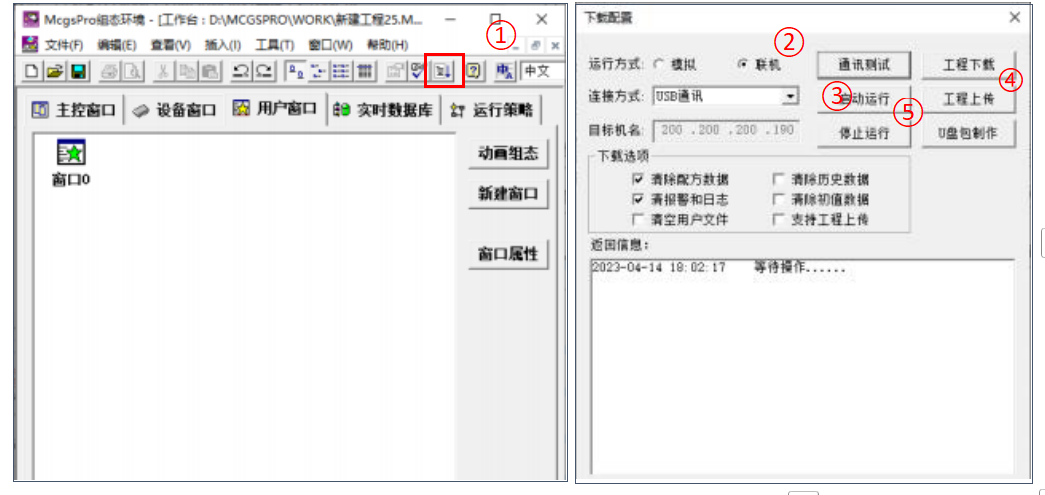
Step 3: Use MCGS Pro Open TPC Project, click to download project ①, Open the download configuration properties page and select "Online" as the run mode . Select the connection method "USB" communication ③, Click on "Project Download" ④. After the project download is successful, click on "Start and Run" ⑤ or... TPC The "Enter Runtime Environment" button on the interface runs the screen-side project.

留言
如果您对我们的产品感兴趣并想了解更多详情,请在此留言,我们会尽快回复您。
提交

留言

留言
如果您对我们的产品感兴趣并想了解更多详情,请在此留言,我们会尽快回复您。
提交
联系我们 :sales@vinac.cn

产品

WhatsApp

接触